
A Client Wanted Their WordPress Site AND a Laravel Livewire Tool, Here’s How “Livewire Is Not Defined” Nearly Broke Both
A local insurance agent client already had a WordPress site, built years ago by someone else, full of blog posts and testimonials he didn’t want to touch. But he also wanted a quote calculator tool, something interactive where visitors could enter their car details and get an instant premium estimate. That kind of interactivity is way easier to build properly in Laravel with Livewire than trying to force it into WordPress with a page builder plugin.
So the plan was simple on paper: keep WordPress for the main site, build the calculator as a separate Laravel app on a subdomain, then link between them. Sounded clean. Until I actually embedded a preview of the calculator inside a WordPress page using an iframe for a quick demo, and the browser console lit up with Livewire is not defined.
That error message alone tells you almost nothing useful, and I’ve now run into it in a few different flavors across different setups. Let me walk through every actual cause I’ve dealt with.
What This Error Actually Means
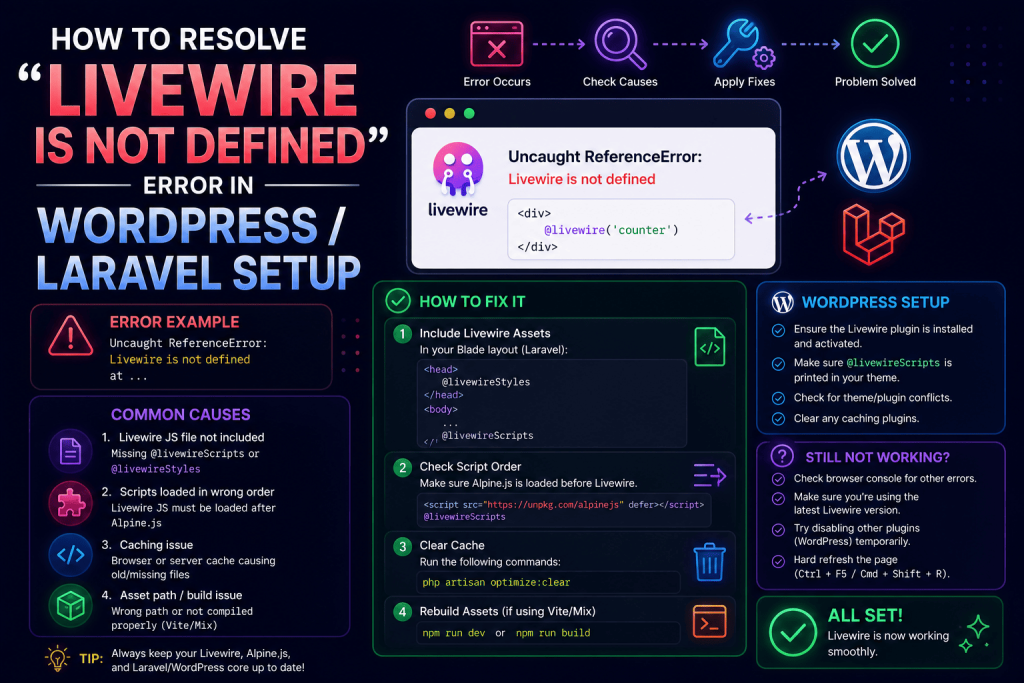
“Livewire is not defined” is a JavaScript error, not a Laravel or PHP error. It means the browser tried to run some Livewire-related JavaScript code, but the actual Livewire JS library hadn’t loaded yet, or didn’t load at all, by the time that code tried to execute.
This almost always comes down to script loading order or a missing script tag entirely, not some deep configuration problem.
Cause 1: Forgetting @livewireScripts (The Classic Beginner Mistake)
This is the most common cause for anyone newer to Livewire, and I’ve genuinely made this exact mistake myself when quickly scaffolding a fresh layout file.
Every Livewire component needs the actual JavaScript library loaded on the page, and that happens through a Blade directive that needs to sit right before your closing </body> tag:
<!DOCTYPE html>
<html>
<head>
    @livewireStyles
</head>
<body>
    {{ $slot }}

    @livewireScripts
</body>
</html>
If you’re using Livewire 3 and Laravel’s newer layout structure with components, it’s easy to accidentally build a layout file without this, especially if you copied a layout template from an older tutorial or a different project that handled it differently. Miss this directive, and every single Livewire component’s JavaScript features silently fail, including that exact “Livewire is not defined” error the moment any Livewire-related JS tries running.
Cause 2: Script Loading Order Issues (What Actually Happened With The Iframe)
Here’s where my actual situation with the insurance client got interesting. WordPress themes and plugins load a LOT of their own JavaScript, jQuery being the big one almost always present. When I embedded the Laravel calculator inside an iframe on a WordPress page for that quick demo, everything looked fine initially since an iframe is technically a separate document with its own script context.
But the client’s WordPress site also had a “speed optimization” plugin installed, one of those popular ones that combines and defers JavaScript files to improve load times, and it was deferring script loading across the entire page including scripts inside embedded iframes in some edge cases, depending on how the plugin’s optimization rules were configured. This caused Livewire’s own script to sometimes load noticeably after the calculator’s Blade view tried initializing Livewire components, resulting in that exact error firing intermittently, not every time, which made it particularly annoying to track down.
The fix ended up being straightforward once I found the actual cause: excluding the iframe’s embedded page from that particular optimization plugin’s script deferral rules. Most speed optimization plugins (I was dealing with one similar to WP Rocket at the time) have an option to exclude specific scripts or URLs from their deferred loading behavior.
Cause 3: Using Livewire Components Directly Inside WordPress (Don’t Do This)
I want to be upfront about something here, since I’ve seen a few people attempt this: you cannot directly run actual Livewire PHP components inside WordPress itself. Livewire is tightly built around Laravel’s framework, its service container, routing, blade compilation, none of which WordPress has natively.
If someone’s searching for this error because they tried installing Livewire as if it were a WordPress plugin, or attempted to shortcode Livewire components directly into WordPress pages, that’s the actual root problem, not a fixable script loading issue. The correct approach, and what I did for this client, is running Livewire inside its own separate Laravel application, then linking to it, embedding it via iframe, or in more advanced cases, using Laravel as a subdomain application that shares session data with WordPress through a bit of custom bridging code.
Cause 4: Asset Compilation Issues With Vite
On a different project entirely, unrelated to WordPress, I hit this same error after migrating an older Laravel project from Laravel Mix to Vite (which became the default in Laravel 9 onward). The issue was that my resources/js/app.js file wasn’t actually importing Livewire’s JavaScript properly after the migration, since some older tutorials still reference the Mix-based setup.
Checking resources/js/app.js, I made sure it looked something like this for a standard Livewire 3 setup:
import './bootstrap';
And more importantly, made sure my vite.config.js was correctly pointing to the right entry files:
import { defineConfig } from 'vite';
import laravel from 'laravel-vite-plugin';

export default defineConfig({
    plugins: [
        laravel({
            input: ['resources/css/app.css', 'resources/js/app.js'],
            refresh: true,
        }),
    ],
});
Then, critically, running the actual build command, something I forgot to do once after pulling fresh code on a new server during deployment:
npm run build
Without running this on the production server, the compiled assets Livewire actually needs simply don’t exist yet, and you’ll get this exact error since the browser has nothing valid to load.
Cause 5: Browser Caching an Old Version of the Script
This one cost me a confusing 20 minutes on a client demo call once. I’d fixed an actual bug related to Livewire’s script loading, deployed it, tested it myself, worked fine. Then the client tested it on their end during a screen share and still got the exact same error.
Turned out their browser had aggressively cached the old broken version of the compiled JavaScript file. A hard refresh (Ctrl+Shift+R on Windows, or Cmd+Shift+R on Mac) fixed it instantly on their end. Since then, I always mention this specifically when handing off a fix to a client, since “just refresh the page” doesn’t always account for aggressive browser caching of static assets like JS files.
If this becomes a recurring issue across a project, Laravel’s Vite integration automatically adds file hashes to compiled assets specifically to prevent this kind of stale caching problem, so it’s worth double-checking that your production build is actually generating properly hashed filenames rather than serving from a manually configured static path that bypasses this.
Step-By-Step Checklist For This Exact Error
Here’s the order I’d actually check things in if you hit this error right now:
- Is
@livewireScriptsactually present in your layout file, right before</body>? - Open your browser’s Network tab (Chrome DevTools) and check if Livewire’s JS file is actually loading successfully, or returning a 404
- If using Vite, has
npm run buildactually been run on whatever server you’re testing on? - If this involves WordPress or any page speed/caching plugin, check if scripts are being deferred or excluded in a way that delays Livewire’s script relative to when components try to initialize
- Try a hard refresh to rule out simple browser caching
Real Example: How I Handled The Insurance Client’s Final Setup
For context, here’s what the final working setup looked like for that project, since it might help if you’re doing something similar.
The Laravel Livewire calculator ran on its own subdomain, something like quote.clientdomain.com, completely separate from the WordPress installation on the main domain. Instead of embedding it in an iframe (which is what caused the original script conflict), I ended up just linking to it directly from a prominent button on the WordPress homepage, “Get Your Instant Quote,” opening the Laravel app in the same tab rather than embedding it inside WordPress at all.
This sidestepped the entire WordPress plugin script conflict issue completely, since the Livewire app now loaded as its own fully separate page with full control over its own script loading order, no WordPress plugins interfering at all. Honestly, in hindsight, this was the better approach from the start, and I’d recommend it over iframe embedding for anyone attempting something similar.
Common Mistakes I’d Warn You About
Trying to force Livewire to run inside WordPress directly. As mentioned, this isn’t how Livewire works. Keep it in its own Laravel application.
Assuming a caching or speed plugin isn’t the cause just because it seems unrelated. Speed optimization plugins on WordPress can be surprisingly aggressive about deferring or combining scripts, even ones seemingly outside their intended scope like iframe content.
Forgetting to rebuild assets after deployment. This bit me specifically once during a rushed deployment where I pushed code changes but forgot the build step on the actual server, not just locally.
Not checking the Network tab before assuming it’s a code problem. Half the time this error is caused by a script that’s genuinely failing to load (404, wrong path, blocked by a plugin), which the Network tab in DevTools shows you immediately, rather than a deeper code issue.
Testing only on your own machine without clearing cache. Always mention hard-refresh troubleshooting to clients or teammates testing your fixes remotely, since stale cached assets have genuinely wasted my time on calls before.
Final Thoughts
This error looks intimidating mostly because “is not defined” sounds like a deep JavaScript problem, but in almost every case I’ve personally run into, it comes down to a script simply not loading in the right order, or not loading at all. Once you understand that Livewire’s actual JavaScript file needs to genuinely be present and loaded before any component tries using it, tracking down the actual cause becomes a lot less mysterious.
If you’re mixing WordPress and Laravel like I was for that insurance client, my honest recommendation is to keep them as separate as possible, link between them rather than embedding one inside the other, and you’ll sidestep a whole category of these script conflict headaches entirely.