
A Simple Search Bar Nearly Took Down a Client’s Job Board Site
I built a job board for a small recruitment startup, listings, filters by category and city, a search bar for job titles. Worked great during development with maybe 200 sample listings. Fast forward eight months, the site had grown to around 40,000 job listings, and the search feature that used to feel instant now took 6-7 seconds to return results. On mobile, some users just gave up and left before it even loaded.
The client called it “the site is broken.” It wasn’t broken, technically, every query still worked and returned correct results. It was just painfully slow because MySQL was scanning through all 40,000 rows every single time someone searched, since nothing told it a faster way to find what it needed.
That’s when I actually sat down and learned database indexing properly, not just as a vague concept I’d heard about, but actually understanding what it does and how to apply it correctly. Here’s everything that fixed it, plus a couple of things I got wrong along the way.
What Indexing Actually Does (No Confusing Analogies, Just Straight Talk)
Think about how you’d find a specific word in a physical book. Without an index, you’d flip through every single page until you found it. With an index at the back of the book listing exactly which page each topic appears on, you jump straight there.
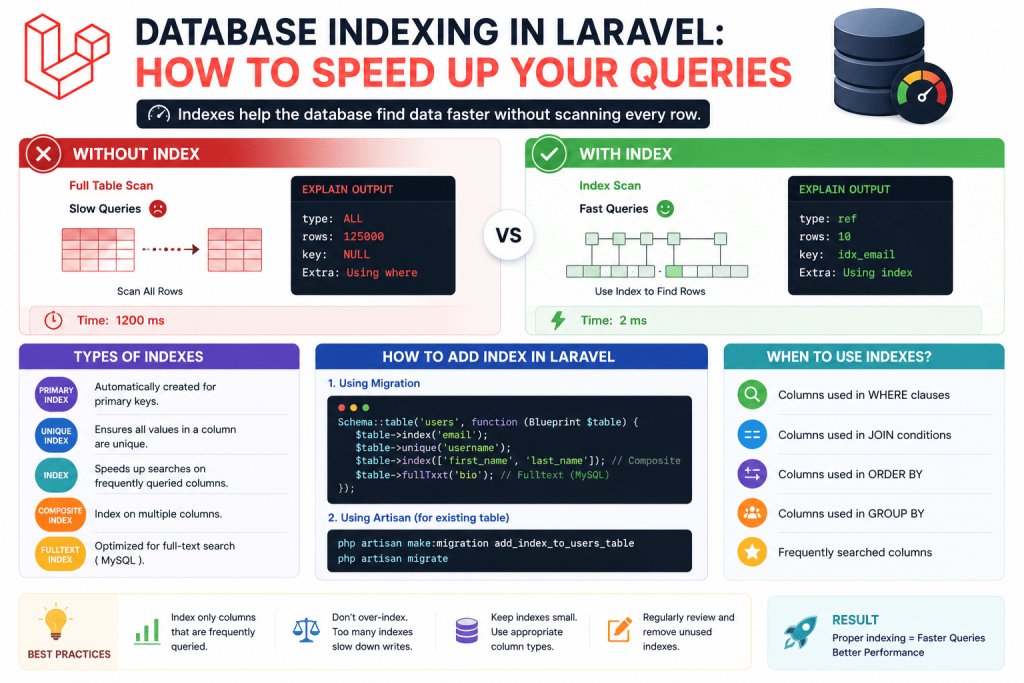
A database index works basically the same way. Without one, MySQL checks every single row in a table to find matches for your query, this is called a “full table scan.” With an index on the right column, it can jump almost directly to the relevant rows instead of checking everything.
The tradeoff is that indexes take up extra storage space and slightly slow down write operations (inserts and updates), since the index itself needs updating too. But for read-heavy operations like search and filtering, which is most of what a typical web app does, the speed benefit is usually massively worth that small tradeoff.
Step 1: Actually Confirming You Have a Problem First
Before adding indexes everywhere blindly, I confirmed the actual issue using MySQL’s EXPLAIN command, which shows you exactly how a query is being executed.
EXPLAIN SELECT * FROM job_listings WHERE city = 'Lahore' AND category = 'IT';
The result that concerned me showed type: ALL and a rows count close to the full table size, meaning MySQL was scanning nearly every single row in the table just to find matches. That “ALL” in the type column is basically the database confirming “yep, I checked literally everything,” which is exactly what you don’t want on a large table.
I also used Laravel Debugbar during local testing to confirm which specific queries were actually taking the longest on the search page, since a page can have multiple queries running, and you want to target the genuinely slow ones first, not just guess.
Step 2: Adding Basic Indexes on Frequently Filtered Columns
The job board’s search and filter functionality relied heavily on the city, category, and job_title columns. None of them had indexes.
In a migration:
Schema::table('job_listings', function (Blueprint $table) {
    $table->index('city');
    $table->index('category');
});
Running this migration and re-testing the same EXPLAIN query showed an immediate improvement, type changed from ALL to ref, and the rows count dropped dramatically, from checking nearly 40,000 rows down to just a few hundred relevant ones.
The actual page load for filtering by city or category alone dropped from several seconds down to well under a second. That was genuinely the easiest, highest-impact fix in this whole process, and it took maybe ten minutes total including writing and running the migration.
Step 3: Composite Indexes (Where I Initially Got It Wrong)
Here’s where things got more interesting, and where I made an actual mistake worth mentioning. Most searches on the job board combined city AND category together, “IT jobs in Lahore,” for example. I’d added separate individual indexes on each column, which helped, but not as much as I expected for these combined searches.
I later learned about composite indexes, a single index covering multiple columns together, specifically for queries that filter on more than one column at the same time.
Schema::table('job_listings', function (Blueprint $table) {
    $table->index(['city', 'category']);
});
Here’s the part that actually confused me initially: column order in a composite index genuinely matters. MySQL can use this index efficiently for queries filtering by city alone, or by city AND category together, but NOT efficiently for queries filtering by category alone without city also being part of that same query. Since most of the actual searches on the job board included the city filter (very few people searched jobs without specifying a location), putting city first made sense for this specific app’s actual usage pattern.
I originally had it the other way around, category first, city second, based on a general tutorial example that didn’t actually match how users were searching on this specific site. Once I swapped the order to match the real usage pattern, the composite index started actually getting used efficiently by combined searches, which I confirmed again using EXPLAIN.
Lesson learned: don’t just copy a general “best practice” column order from a tutorial, actually look at how your specific app’s users query the data, and order your composite index columns to match that real pattern.
Step 4: Full-Text Search for the Job Title Search Bar
Regular indexes work great for exact or prefix matching, but the job title search bar needed to match partial words anywhere in a title, someone searching “developer” should find “Senior Laravel Developer,” “Junior Web Developer,” and so on.
A regular index doesn’t help much here since the search term isn’t at the start of the value being searched. This is where MySQL’s full-text indexing comes in.
Schema::table('job_listings', function (Blueprint $table) {
    $table->fullText('job_title');
});
And querying it using Laravel’s whereFullText() method (available since Laravel 9):
$results = JobListing::whereFullText('job_title', $searchTerm)->get();
This made the actual title search noticeably faster and, as a nice side effect, also returned more relevant results than a basic LIKE '%term%' query would have, since full-text search has some built-in relevance ranking behavior.
Before this, I’d been using:
JobListing::where('job_title', 'LIKE', "%{$searchTerm}%")->get();
Which, worth mentioning, genuinely can’t use a regular index efficiently at all when the wildcard % is at the beginning of the search pattern, since MySQL can’t jump to a starting point in the index when it doesn’t know what the value starts with. This was actually one of the biggest hidden causes of the original slowness, that “starts with % wildcard” pattern was forcing a full table scan every single time, regardless of any indexes I’d added elsewhere.
Step 5: Don’t Forget Foreign Keys (This One’s Easy to Miss)
Laravel actually adds an index automatically when you use foreignId() in a migration, which I didn’t realize for a while, assuming I always needed to add these manually.
$table->foreignId('company_id')->constrained();
This automatically creates both the foreign key constraint AND an index on company_id. But if you’re adding a foreign key column a different way, or working with an older existing table that predates this convention, it’s worth double checking those relationship columns actually have indexes, since joining across an un-indexed foreign key column is another common, easy-to-miss source of slow queries, especially on relationship-heavy queries using with() for eager loading.
Step 6: Checking What You Actually Have (And What You Might Be Missing)
You can see all existing indexes on a table directly:
SHOW INDEX FROM job_listings;
I now genuinely run this before starting any serious performance work on an existing project, just to see what’s already indexed versus what’s missing, rather than guessing or assuming based on the migration files alone, since indexes can sometimes get added or removed outside of migrations too on older, previously modified projects.
Real Before and After Numbers From the Job Board
For context, here’s what actually changed on that project:
Before any indexing: Searching by city and category combined took roughly 4-6 seconds on the full 40,000 row table. Job title search using a LIKE '%term%' pattern took even longer, sometimes 7-8 seconds.
After basic column indexes: City and category filtering alone dropped to under 1 second.
After the properly ordered composite index: Combined city and category searches dropped further, to around 200-300 milliseconds.
After full-text indexing on job title: Title search dropped from 7-8 seconds down to under 400 milliseconds, while also returning noticeably more relevant results than the old wildcard search did.
The client’s reaction, understandably, went from “the site is broken” to asking if I could apply the same fix to a few other slow pages on the same platform, which, unsurprisingly, had the exact same missing-index problem.
Common Mistakes I’d Warn You About
Adding indexes to every single column just in case. This isn’t free, each index adds overhead to every insert and update operation, and takes up storage space. Only index columns you’re genuinely filtering, sorting, or joining on frequently.
Getting composite index column order wrong. As I learned, order matters based on how your queries actually filter data, not just an assumed “best practice” order copied from somewhere else.
Using a leading wildcard in LIKE queries and expecting indexes to help. They generally won’t, for that pattern specifically. Consider full-text search instead if that’s your actual use case.
Not verifying the fix actually worked. Always re-run EXPLAIN after adding an index to confirm MySQL is genuinely using it (check the type and rows columns), rather than just assuming adding an index automatically fixed things.
Forgetting indexes on foreign key columns not created through foreignId(). These don’t get automatic indexing the same way, and joins on un-indexed relationship columns are a common, easy-to-overlook slowdown.
Final Thoughts
Indexing genuinely felt like one of those “why didn’t I learn this properly sooner” moments once I actually saw the real before and after numbers on that job board project. The scary part is exactly how invisible this problem is during normal development, everything works perfectly fine with a small dataset, and the actual slowness only shows up once real data volume builds up, often well after a client’s already relying on the site daily.
If you’re building anything with search or filtering functionality right now, even if it feels plenty fast today with your current test data, it’s worth running EXPLAIN on your key queries and checking if the right indexes are already in place. It’s a lot easier to add this early than to debug a confused, slightly panicked client message about a “broken” site months down the line.